Average Ratings 0 Ratings
Average Ratings 0 Ratings
Similar Products
-
YodeckNext-generation technology for digital signage professionals Yodeck, a cloud-based digital signage platform, is unbeatable. It powers your screen with dynamic content that instantly engages your target audience. Yodeck makes it easy to create, schedule, and design content from the web. To get your message across to those who matter most to you, use attention-grabbing media such as videos, images and PDF files, Office documents, data dashboards, and social media. It provides enterprise-grade security and control. Yodeck's drag-and-drop editing feature allows users to be creative in organizing content into interesting layouts. Yodeck is proud to offer a unique digital signage solution for businesses of all sizes. This includes local diners as well as global leaders like Delta Airlines, Autodesk and Adobe.
-
ROLLERAt ROLLER, we help leisure and attractions businesses unlock their full potential and grow with confidence. Trusted by more than 3,000 venues across 30+ countries—including leading brands like Sky Zone, Altitude, American Dream, Uptown Jungle, Flip Out, Oxygen, Innoflate, and Jumpsquare—we bring deep expertise in the unique needs of the attractions industry. From family entertainment centers and trampoline parks to water parks, zoos, aquariums, and children’s museums, ROLLER supports a wide range of venue types. Our all-in-one, cloud-based platform is designed to simplify operations and maximize revenue. With integrated tools for ticketing, point of sale, memberships, payments, and digital waivers, ROLLER enables operators to streamline workflows, improve the guest experience, and make smarter business decisions—all from a single system.
-
TelemetryOSTelemetryTV is a powerful platform for digital signage that allows organizations to connect with audiences, generate awareness and give voice to their communities and teams. TelemetryTV lets you broadcast dynamic content by streaming video, images and social feeds to all your displays, wherever they may be. TelemetryTV powers internal communications and marketing at Starbucks, Amazon and Stanford University. Our success is based on being flexible, open to communication, collaborative, and open to collaboration. We believe in continuous learning, challenging the status-quo, and listening to customers. We are moving towards a world in which our walls will eventually talk. This begs the question: What do you want them saying?
-
ScreencaptScreencapt allows you to record the entire screen or a selected area. You can also record a specific window. Screencapt is the ideal screen recorder because of its flexibility. Using the integrated audio recording you can also add your commentary or system sound directly into the screen recording. This is particularly useful when creating explanation videos or presentations. Screencapt's ability to record a webcam is a special feature. You can now add your comments and reactions to the video. This makes your screen recordings more personal and professional. Screencapt offers advanced options to record the cursor. You can choose to hide the cursor or add special effects to highlight specific actions. This is especially useful for software tutorials and demonstrations where a clear cursor view is required.
-
ManageEngine ADAudit PlusADAudit Plus enhances the security and compliance of your Windows Server environment by delivering comprehensive insights into all operational activities. It offers a detailed overview of modifications made to Active Directory (AD) resources, encompassing AD objects and their respective attributes, group policies, and more. By conducting thorough AD audits, organizations can identify and mitigate insider threats, misuse of privileges, and other signs of potential security breaches, thereby bolstering their overall security framework. The tool enables users to monitor intricate details within AD, including entities such as users, computers, groups, organizational units (OUs), group policy objects (GPOs), schemas, and sites, along with their associated attributes. Furthermore, it tracks user management activities like the creation, deletion, password resets, and alterations in permissions, providing insights into the actions taken, the responsible individuals, the timing, and the originating locations. Additionally, it allows organizations to monitor the addition or removal of users from security and distribution groups, ensuring that access privileges are kept to the necessary minimum, which is critical for maintaining a secure environment. This level of oversight is vital for proactive security management and compliance adherence.
-
ManageEngine ADManager PlusADManager Plus is an effortless and user-friendly solution for managing and reporting on Windows Active Directory (AD), designed to assist both AD administrators and help desk staff with their daily operations. Featuring a centralized and user-friendly web interface, this software addresses a range of intricate tasks, including the bulk management of user accounts and various AD objects, delegation of role-based access to help desk personnel, and the generation of a comprehensive array of AD reports, many of which are critical for compliance audit purposes. Additionally, this Active Directory tool provides mobile applications that enable AD administrators and technicians to carry out essential user management functions from their smartphones or tablets while on the go. It simplifies the process of creating multiple users and groups in Office 365, managing licenses, establishing Exchange mailboxes, migrating existing mailboxes, setting storage limits, and adding proxy addresses, thereby enhancing overall efficiency. With its robust features, ADManager Plus stands out as a vital asset for organizations aiming to streamline their AD management processes.
-
JAMS SchedulerJAMS is an automation orchestration and job scheduling solution that runs, monitors, and manages critical IT processes from a single console. JAMS automates jobs across Windows, Linux, UNIX, IBM i, z/OS, and OpenVMS, with native integrations for the databases, BI tools, and ERP systems already running your business. Jobs run on any schedule or trigger off other events, with dependency management keeping workflows in order and an audit trail logging every execution. JAMS includes two AI capabilities at no additional cost. JAX is an AI agent built into the JAMS Web Client: ask it a question in plain language, and it finds a job, troubleshoots a failure, or looks up how to do something, grounded in JAMS documentation. It acts only when asked, and every change waits for your approval. JAMS MCP brings JAMS into the AI coding tools teams already use, including Cursor, Claude Code, GitHub Copilot, and Claude Desktop. For teams managing thousands of jobs across SQL Server, ADF, Airflow, SAP, JDE, and Banner, this cuts tribal knowledge and middle-of-the-night troubleshooting. Knowledge that once lived in one person's head becomes something any team member can ask about directly. The AI lives in the product, not in the support queue. Support is staffed by humans JAMS will never outsource, based in the United States, the United Kingdom, and Australia. New tickets go to long-tenured engineers, and every JAMS customer has the CEO's cell phone number. JAMS' mission is to reduce the operational burden of critical automation, so teams spend more time on the work automation was meant to free them for.
-
DbVisualizerDbVisualizer is a universal database client for anyone who works with data, from indie developers and startups to professional teams managing complex database environments, including developers, DBAs, analysts, and data engineers working across relational and NoSQL databases. Key features: - SQL editor with intelligent autocomplete, visual query builders, variables, and execution tools - AI Assistant for answering questions, explaining errors, and analyzing code - Git integration for managing SQL scripts and team collaboration - Customizable layouts, key bindings, and UI themes - Favorites for frequently used scripts and database objects - Configurable security settings for organizational requirements Connects via JDBC to MySQL, PostgreSQL, SQL Server, Oracle, Snowflake, SQLite, Cassandra, BigQuery, and more. Runs on Windows, macOS, and Linux. Nearly 7 million downloads, with Pro users in 150 countries, scaling from solo projects to enterprise database management.
-
ManageEngine Endpoint CentralManageEngine Endpoint Central is a unified endpoint management and security platform designed for IT teams managing diverse and distributed device environments eliminating the need for multiple disconnected products for patching, remote access, mobile management, and security. The platform supports Windows, macOS, Linux, iOS, Android, and Chrome OS. Automated patch deployment covers OS and 1,000+ third-party applications with scheduling, testing, rollback, and compliance reporting. Software can be deployed, updated, or removed across thousands of endpoints simultaneously. OS imaging workflows provision new devices quickly, while continuous asset inventory supports license compliance and audit readiness. Security capabilities are built directly into the platform. Vulnerability assessment identifies and prioritizes endpoint weaknesses by severity. Application control prevents unauthorized software execution. Device control governs USB and peripheral access. Endpoint privilege management removes unnecessary admin rights. EDR delivers behavioral threat detection and incident response, while NGAV blocks malware, ransomware, and zero-day threats. BitLocker and FileVault encryption enforces disk protection across Windows and macOS. Built-in remote desktop allows technicians to connect instantly without third-party software. Integrated MDM covers iOS and Android enrollment, app management, and remote wipe for corporate and BYOD environments. DEX monitoring gives IT teams real-time visibility into device performance enabling proactive issue resolution before productivity is impacted. Available as cloud or on-premises across Free, Professional, Enterprise, UEM, and Security editions.
-
AdRem NetCrunchNetCrunch is commercial, self-hosted, agentless network and IT infrastructure monitoring software for Windows Server. It monitors network devices, servers, virtualization platforms, cloud services, applications, websites, logs, telemetry, and network traffic across distributed environments. NetCrunch supports 680+ monitoring targets and provides 270+ ready-to-use Monitoring Packs for devices, applications, and operating systems. Policy-based monitoring automatically applies monitoring settings, Monitoring Packs, thresholds, and alerts to matching devices and systems. Licensing is based on monitored nodes and network interfaces rather than individual sensors, checks, or metrics. NetCrunch provides real-time dashboards and automatic Layer 2 and routing topology maps for visibility into network status and performance. Network traffic analysis supports NetFlow, sFlow, IPFIX, and other flow technologies. Its alerting system supports event correlation, dependency-aware suppression, predictive thresholds, escalation, and 40+ automated response actions, including scripts, notifications, API calls, and integrations with external systems. Distributed Monitoring Probes extend monitoring to remote and isolated locations. NetCrunch also provides a REST API for integration and automation with external IT management, service management, and operational systems. NetCrunch is self-hosted on Windows Server and can monitor on-premises, air-gapped, cloud, and hybrid IT environments.
Description
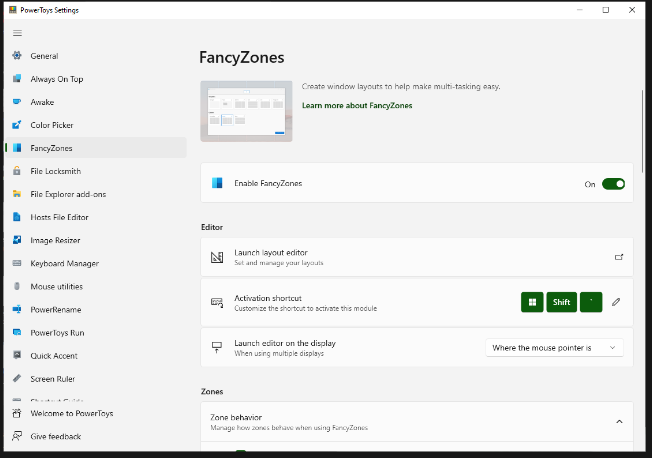
FancyZones serves as a window management tool designed to help users arrange and snap their application windows into optimized layouts, enhancing workflow efficiency and allowing for quick restoration of these layouts. This utility empowers you to specify a series of designated zones on your desktop where windows can be directed. By dragging a window into a predetermined zone or using a designated keyboard shortcut, the respective window automatically resizes and relocates to occupy that zone completely. Additionally, if you have the "Use non-primary mouse button to toggle zone activation" option activated, you can enter zone selection mode by simply clicking the secondary mouse button. When two zones are positioned next to each other, a window can be adjusted to span the combined area of both zones, effectively rounding up to the smallest rectangle that encompasses the two. As you maneuver the mouse cursor close to the shared boundary of two zones, both zones become active at the same time, giving you the flexibility to drop the window into either or both. Moreover, you can drag the window until it activates one zone and then, by pressing and holding the control key while continuing to drag, select multiple zones to expand your layout options. This feature significantly streamlines the process of organizing your desktop workspace efficiently.
Description
The playlist is generated automatically from the folder where the currently playing file resides. Users can access the playlist by positioning their mouse toward either the left or right side of the player, with the default being right, or they can use the designated keyboard shortcut (P by default), or click a button if mouse activation is turned off. Additionally, the playlist can either overlay the video, push it, or adjust its size. In Haruna, nearly all functions can be executed using customizable keyboard shortcuts that users can modify to their preferences. Furthermore, users have the option to assign various actions to different mouse buttons, including single and double clicks for left, middle, and right buttons, as well as scrolling up and down. This flexibility allows for a more personalized user experience, catering to individual workflow needs and preferences.
API Access
Has API
No
API Access
Has API
Yes



Integrations
No details available.
Integrations
No details available.
Pricing Details
Free
Free Trial
No
Free Version
Yes
Pricing Details
Free
Free Trial
No
Free Version
Yes
Deployment
Web-Based
No
On-Premises
No
iPhone App
No
iPad App
No
Android App
No
Windows
Yes
Mac
No
Linux
No
Chromebook
No
Deployment
Web-Based
No
On-Premises
No
iPhone App
No
iPad App
No
Android App
No
Windows
No
Mac
No
Linux
Yes
Chromebook
No
Customer Support
Business Hours
Yes
Live Rep (24/7)
No
Online Support
Yes
Customer Support
Business Hours
No
Live Rep (24/7)
No
Online Support
Yes
Types of Training
Training Docs
Yes
Webinars
Yes
Live Training (Online)
No
In Person
Yes
Types of Training
Training Docs
Yes
Webinars
No
Live Training (Online)
No
In Person
No
Vendor Details
Company Name
Microsoft
Country
United States
Website
learn.microsoft.com/en-us/windows/powertoys/fancyzones
Vendor Details
Company Name
KDE
Founded
1996
Country
Germany
Website
haruna.kde.org
